
CCM – Clock Capture Module Assembly Instructions

August 16th, 2010 Leave a comment Go to comments

CCM – Clock Capture Module Assembly


Welcome to the Synthrotek Clock Capture Module Assembly Guide! If you got your kit in the mail today and want to start assembling, this guide will help you do it fast and right.  If you’re new to circuit assembly, this is a great kit to learn with.  Let’s get started building the circuit!

Component Identification

The best way to begin any electronics project is to gather and identify your components. Lay out the parts included in your kit and compare them against the CCM Bill of Materials. If your kit is missing any parts, we’ll send you them for free.

If this is your first electronics project, don’t worry if you are not familiar with all of the parts.  This guide is designed to help beginners assemble a working circuit.

Capacitors


C1, C4, and C5 are 0.1μF non-polarized ceramic capacitors.  C2 and C3 are 47 μF electrolytic capacitors. C6 is a 4.7μF electrolytic capacitor.  Notice how the leads (legs) on the electrolytic capacitors are unequal and the gray stripe on the side of the shorter leg.  This indicates the polarity (positive or negative) of the lead.  When we are placing these components on our circuit board, we need to pay attention to this to have an operational circuit.

Diodes

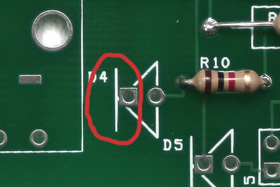
D1, D2, and D5 are Schottky diodes.  Simply put, diodes allow current to flow in only one direction.  These are important because they can prevent damage to a circuit’s more sensitive components.  If you look closely, you will be able to see a black band close to the edge of the diode.  This determines the negative lead of the diode, allowing current to flow only in the direction of the positive lead to the negative lead.

LED (Light Emitting Diode)

D3 and D4 are LEDs, which regulate the flow of current in one direction.  Just as the electrolytic capacitors and Schottky diodes are polarized, so are LEDs.  LEDs are usually your first indication that your circuit works (or doesn’t!) when connected to a power source, such as a 9V battery.

1/8″ Mono Audio Jacks

J2 and J3 are 1/8″ mono audio jacks.  During the circuit’s operation, J2 will output the right channel of the input stereo signal and J3 will output the clock output.

1/8″ Stereo Audio Jack

J1 is a stereo audio jack.  It is the circuit’s source of the input signal.  The main difference between the stereo jack and the two mono jacks is that the stereo jack has two channels of input (left and right), whereas the mono jack only has one.  Stereo jacks have 5 pins (we will only use 3 in our circuit).

Transistor

Q1 is a Q2n2222 NPN-type transistor.  Transistors are important in the amplification and switching of signals.  The flat surface on one side of the packaging body will help us orient this component when we begin assembling the circuit.

Resistors

The value of a resistor is indicated by the 4 colored bands on its surface.  We only need to know the first three to determine the resistance of the component.   If you don’t have the resistor color code memorized yet, here’s a quick cheat sheet for this project:

* Note – In this guide, a 39kΩ resistor is used in place of a 40kΩ for R8.  Its color code is: orange – white – orange.  This does not affect the operation of the circuit because of the tolerance of the resistor, the 4th band. *

Potentiometer

R7 is a 20kΩ potentiometer, which is a variable resistor.  The amount of resistance of the component is dependent on what position the shaft is turned to.  It is often referred to as a “pot” for short.  The three holes and metal protrusions are where we will wrap wire around and solder to.

Power Connectors

J4  is a standard 9V battery clip.  On the right is J5, a 9V AC adapter jack.  Both are capable of powering the circuit; however, 9V batteries are notoriously expensive and short-lived in most electronics.  The AC adapter jack can power the circuit indefinitely, provided there is an available power outlet nearby.  Having both options ensures consistent operation.

ICs (Integrated Circuits)

U1 and U2 are integrated circuits, sometimes referred to as ICs or chips.  ICs are useful in creating compact circuits and can perform many different functions.  U1 is an LM393 Comparator and U2 is a TLV2370 Op Amp.  Notice the notch on the IC to the left and the dot in the upper left hand corner of the IC on the right.  These marking determine where the numbering of the pins begins.  For our purposes, we only need to know that the top left lead is Pin 1 in order to place it onto the circuit board.

PCB (Printed Circuit Board)

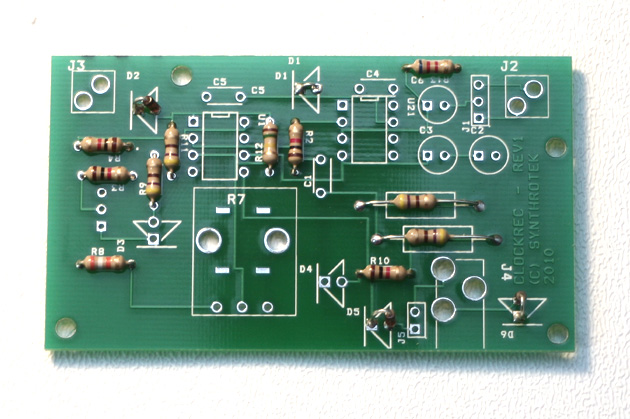
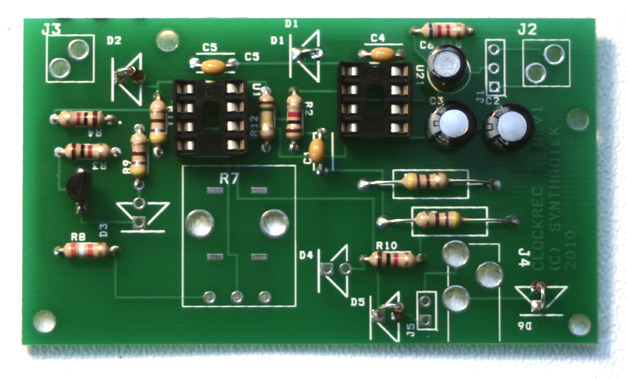
As you can see, the PCB is two sided.  The top layer has marking to designate where each component should be placed before soldering.  Notice that some of the holes have squares instead of circles.  These are used to specify the orientation of certain components.  In most cases, it indicates the negative lead of a polarized component or where Pin 1 of an IC should be aligned.  The bottom layer is where the soldering portion of the circuit-building process takes place.

Now that you can identify each part in your CCM kit, it’s time to start building our circuit.

Assembly

1. ICs

Our first step in the assembly of the CCM is to insert the ICs (U1 and U2) into the PCB.  Locate the square hole on the top of the PCB for U1.  If you remember from the Component ID section above, the marking on the surface of an IC determines where Pin 1 is located.  In the case of Q1, it is a half-circle shape cutout.  On Q2, it is a dot that designates Pin 1.   Match Pin 1 with the square hole and the IC should be aligned  like in the picture above.  The leads may be too wide to fit into the hole.  If so, gently squeeze the leads inward and retry.


Once the ICs are positioned correctly, flip the PCB over.  Solder all of the pins to the PCB.

2. Resistors

If you identified each of the resistors in the beginning of this guide, this step will be easy.  Insert the resistors into their marked positions and bend the leads outwards or in separate directions on the bottom of the board to retain them.  Flip the board over to the back and solder each lead to the PCB.  I found that cutting the leads as I finished each resistor made soldering easier, as the leads weren’t getting in my way while I worked.

3. Ceramic Capacitors

C1, C4, and C5 are non-polarized, so we do not have to worry about correct placement (unlike the electrolytic capacitors).  Place each capacitor in its respective position, bend the leads in opposite directions, solder each lead, and cut off the excess lead wire.

4. Electrolytic Capacitors

The layout of the PCB makes it easy to identify where each lead of the electrolytic capacitor goes.  Insert the long lead of the capacitor into the round through-hole and the short lead into the square through-hole.  Bend the leads in opposite directions to retain the position, solder the component into place, then clip the leads.

5. Transistor

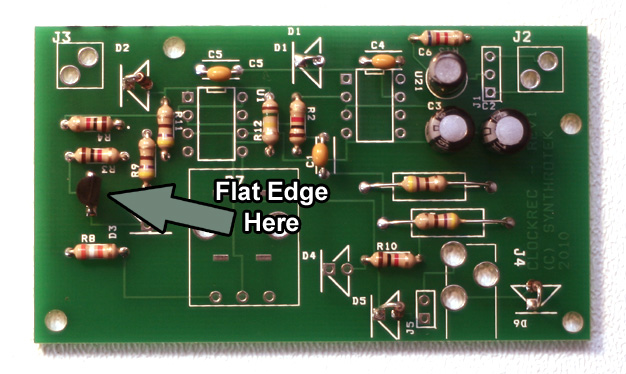
The marking for Q1 (Q2N2222 Transistor) was not placed on the top of the PCB (manufacturer error), so we will have to find the 3 through-holes ourselves.  Luckily, it’s easy to spot (see above picture), wedged between R3 and R8 on the left side of the PCB.  You’ll notice that there is a square through-hole below two circle through-holes.  This is to help orient the transistor Q1 into the correct placement, its flat side facing right.

When inserting the component, you will have to bend the leads outward to be able to fit it into the spacing of the holes.  The transistor should not be forced into position; instead, leave some room.  Bend the leads on the bottom of the PCB to retain the position, then solder and clip the excess.

6. Potentiometer

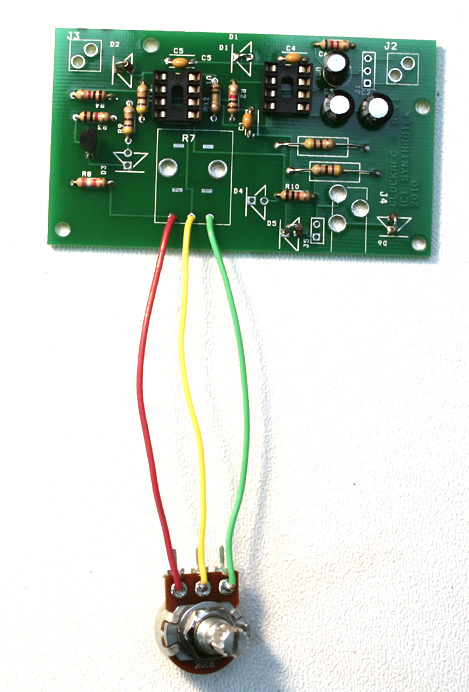
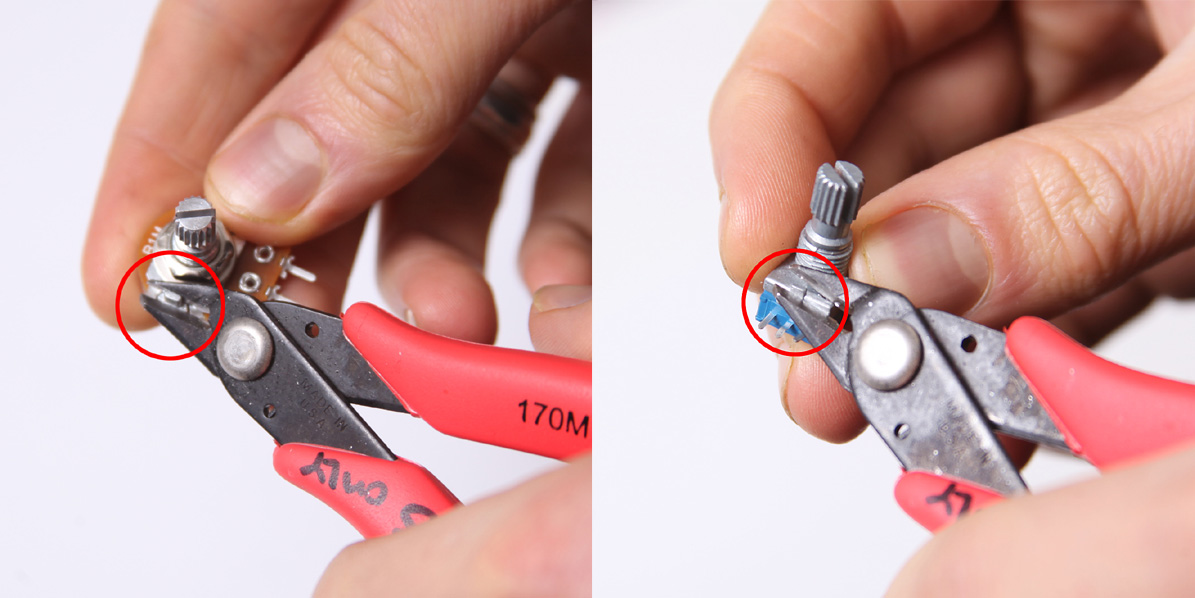
Strip the ends of 3 equal lengths of wire, twist each exposed wire until it is tight (if you are using stranded wire), and attach it to each solder lug as shown in the picture.  A tight physical connect will result is a strong solder joint.

To mount, match the wires attached to the potentiometer to R7′s through-holes.  Insert the wire into the specified holes, bend to retain, solder, and clip the excess.

7. Diodes


The PCB’s overlay simplifies the placement of diodes D1, D2, and D5 (D6 as well if you are using the 9V AC adapter jack).  For those that can read schematics, you will notice that the diode silkscreen is the same symbol used in most schematics.  Also, the square hole indicates where the negative lead of the diode will be inserted.   The negative lead of the diode has a black band near the lead (you may need a magnifying glass to see it).  Place the diodes in the correct positions, bend the leads to retain their position, solder, and cut the excess lead wire.

8. LED Wiring

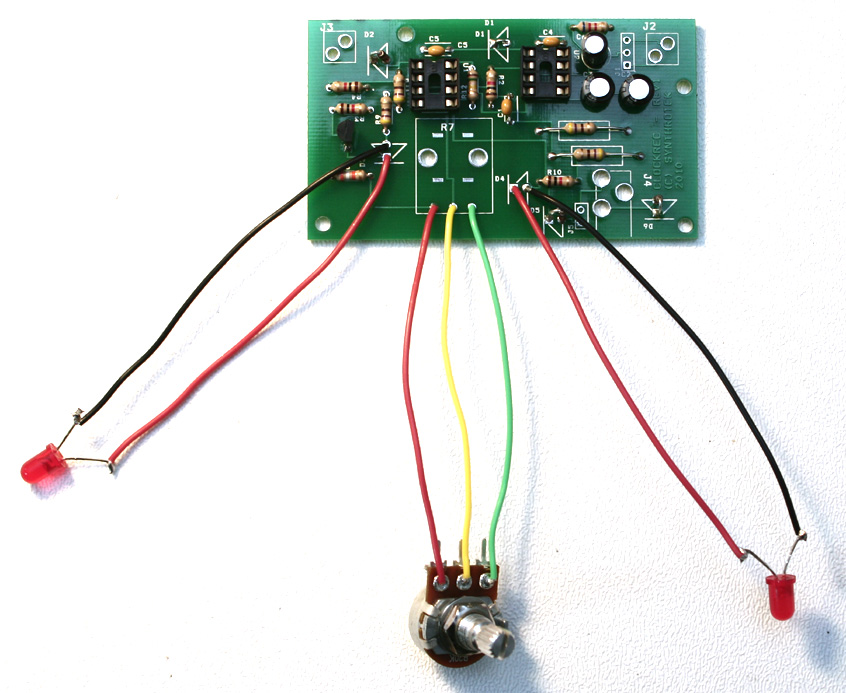
Using different colored wire is useful when dealing with wired polarized components.  Bend the leads of the LED outward and wrap wire around each with the appropriate color (red and black work for me).  Solder, cut off the excess, and repeat for the other LED.

9. Mounting LEDs onto PCB

The LEDs D3 and D4 will be positioned just like the diodes of the previous step.  The black wire will be inserted into the square hole and the red wire will be inserted into the round hole.  Bend the wire to retain, solder, and cut off the excess bare wire.

10. 1/8″ Mono Audio Jacks

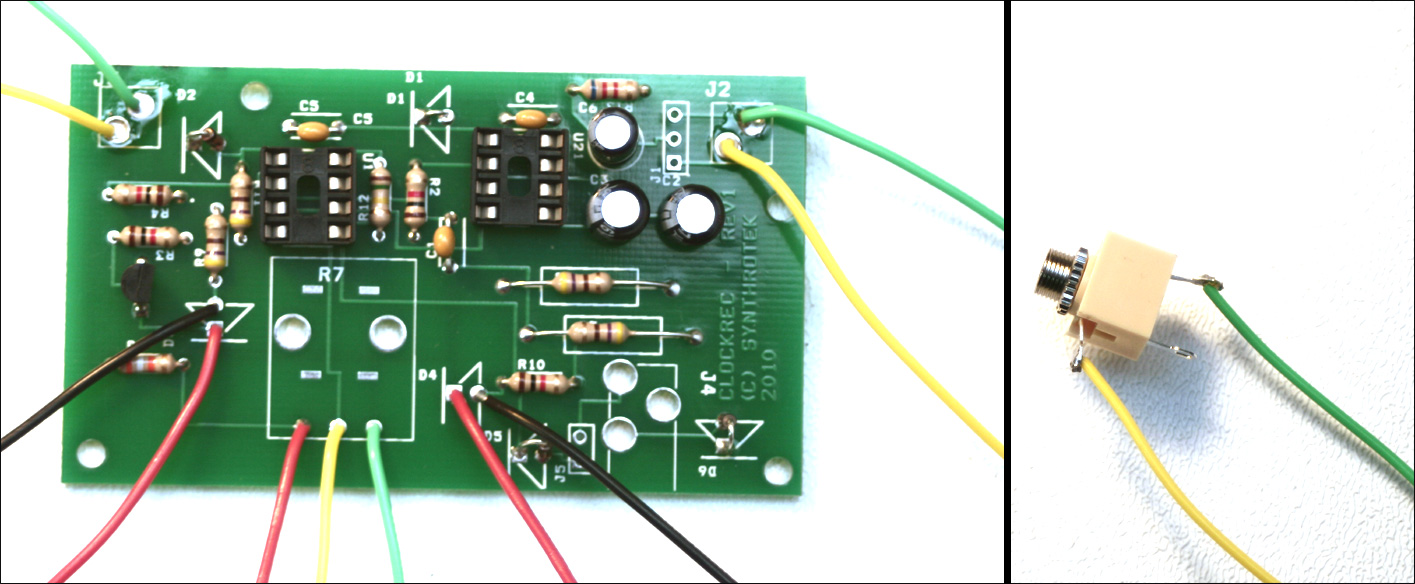
Connect two wires to each 1/8″ mono jack as shown.

Using the color-coded wire as a reference, insert the opposite ends of the mono jack wires as shown.  When soldering wires in the larger through-holes, it helps to apply a little solder to the perimeter of the through-hole before soldering the wire.

11. 1/8″ Stereo Jack

Using color-coded wire comes in handy during this step.

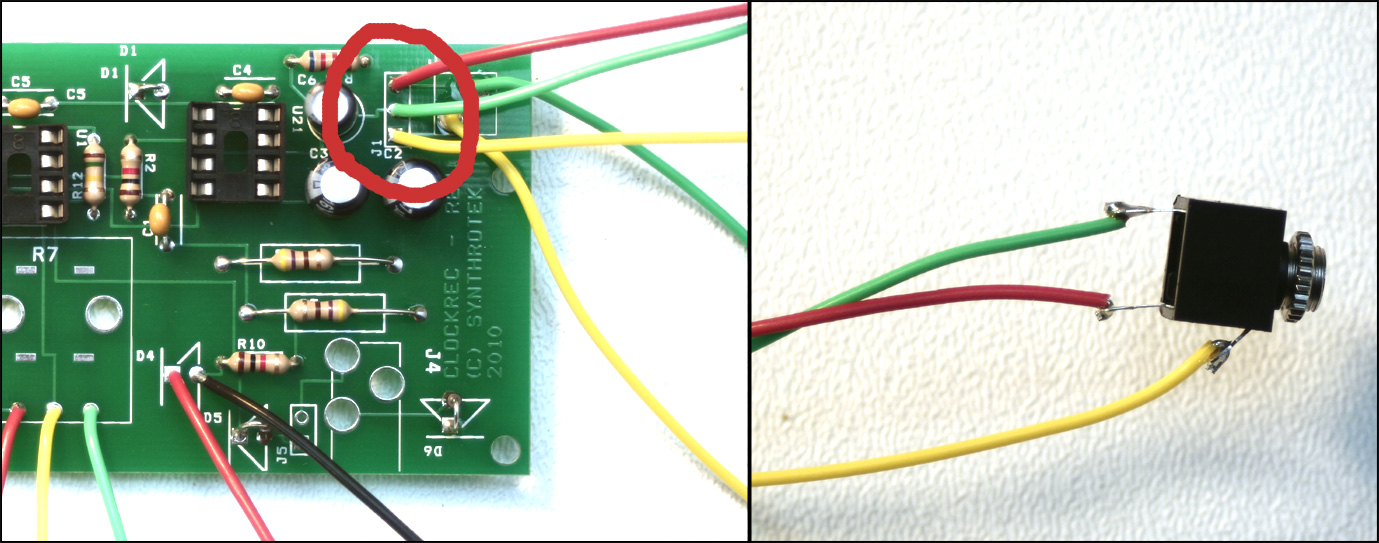
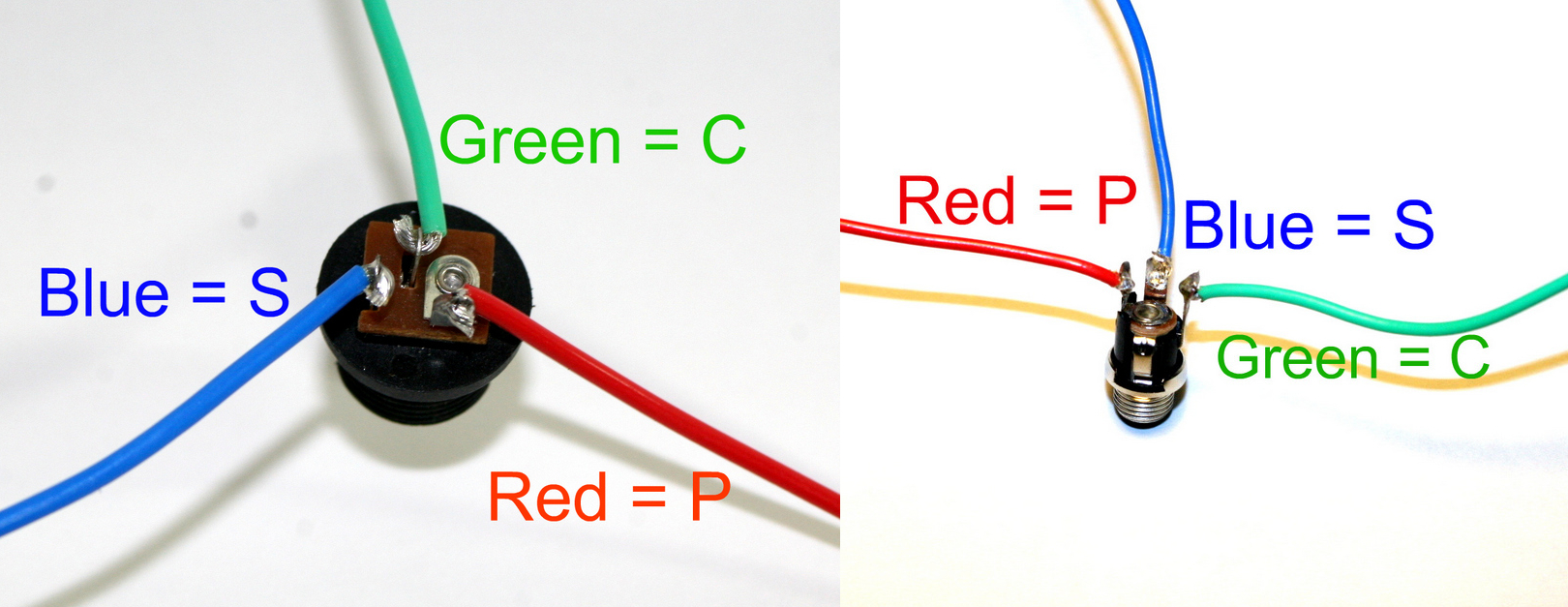
Connect 3 wires to each of the contact points shown in the picture above.  The other two connections are not used in this circuit, so avoid being messy with the soldering and get only the pins that you want.

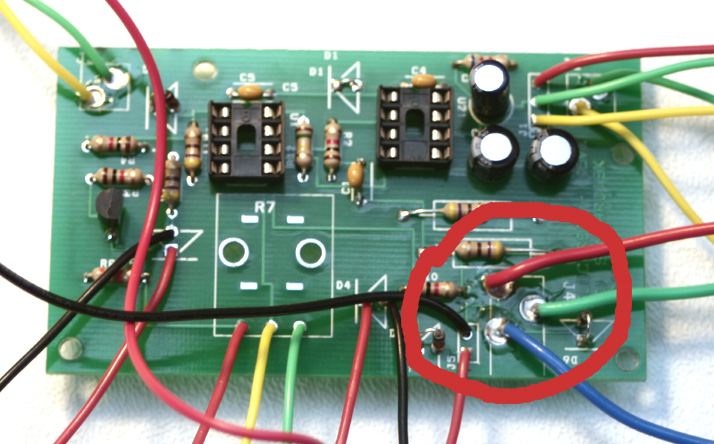
Locate the J1 marker on the PCB and insert the wires as shown.  As usual, the black wire will be placed in the square hole.  Above the black wire is the green wire and red wire.

12. Power Connectors

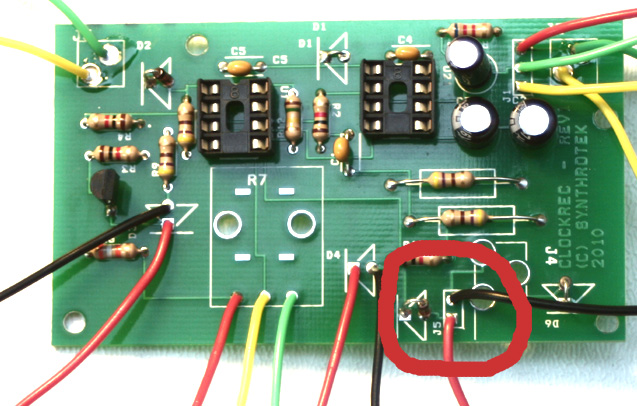
Disregard the square through-hole for J5 for this step.  Instead, insert the positive (red) lead of the 9V battery connector to the square hole and the black lead to the circle through-hole.  For the 9V AC adapter, solder two wires as shown in the picture above.  Connect these wires to the 9V AC adapter jack in the positions shown in the picture.

13. Switch for 9V Battery Jack

If you plan on mounting your circuit into a case, you will want to have a switch to turn on/off the power to the 9V battery.  9V batteries are expensive to waste and having to open the case to put in a 9V any time you want to use your CCM is time-consuming.

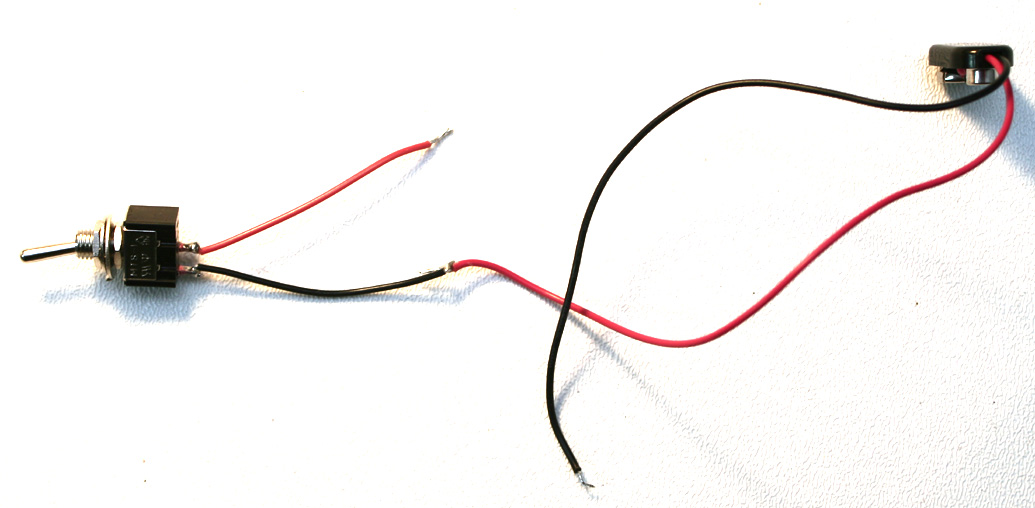
Begin by soldering two wires to your SPST switch (it should only have two solder lugs).

Next, de-solder the red wire of the 9V battery jack from the PCB.

Solder the red lead of the battery jack to one wire from the switch and solder the other switch wire to the PCB (where the red wire from the battery jack was soldered).

Test your circuit by inserting a 9V battery to the battery jack and toggling the switch.  The “On” diode D4 should turn on/off.

Finished Circuit

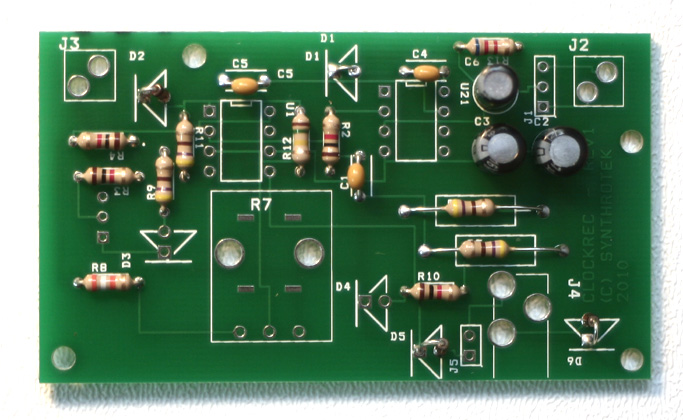
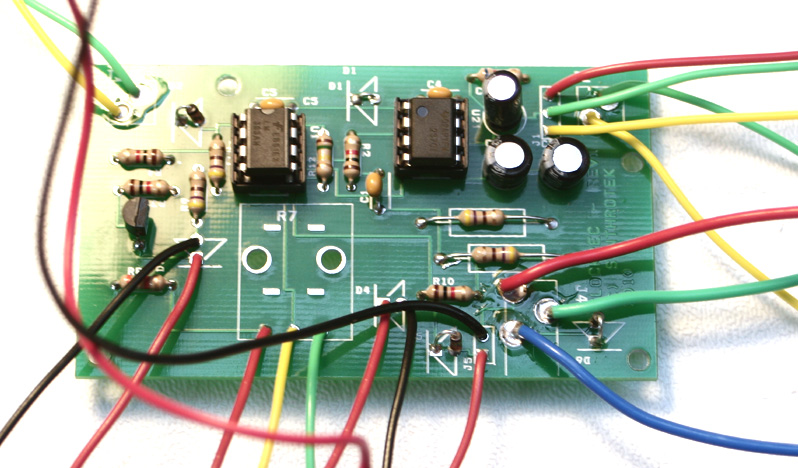
Your circuit should look like this when finished.

Congratulations!  If you made it this far through the assembly guide, you’ve just finished the circuit portion of the Clock Capture Module.  Before moving on to mounting your circuit in a case, I would suggest you test your circuit to see if it is operational.

Check to see if both LEDs turn on when plugging in a battery or the AC adapter.   Insert a stereo audio source (such as the DS-10) into the stereo jack and a cable connection from each mono jack to an amplifier.  Does it do what a CCM should do?  If not, check your connections and soldering joints.  Troubleshooting can be difficult, so take your time and be methodical in your debugging.  Otherwise, enjoy your new circuit and continue on to putting your Clock Capture Module into a case.

Putting Your Circuit into a Case

Coming soon…

w.

  1. No comments yet.
  1. No trackbacks yet.

Bad Behavior has blocked 578 access attempts in the last 7 days.